
Your Mac is acting up. A website will not load properly, a page still shows old content, an app feels sluggish, or your storage is almost full. Someone online says, “Just clear the cache,” and you are left wondering what that actually means and how to do it without breaking anything.
Good news: clearing cache on a Mac is safe when you do it the right way, and it usually takes less than a minute. This guide walks you through every type of cache you are likely to meet, including browser cache (Safari, Chrome, Firefox, Edge), app and user cache stored in your Library folder, system cache, and DNS cache. You will also learn what is safe to delete, what to leave alone, and how to fix problems if something does not go as planned.
Note on versions: the steps below work on recent versions of macOS, including Sonoma, Sequoia and Tahoe. Apple sometimes renames menu items between releases, including in newer versions such as macOS 27, so if a label looks slightly different, look for the closest match.
Quick Answer: How to Clear Cache on Mac
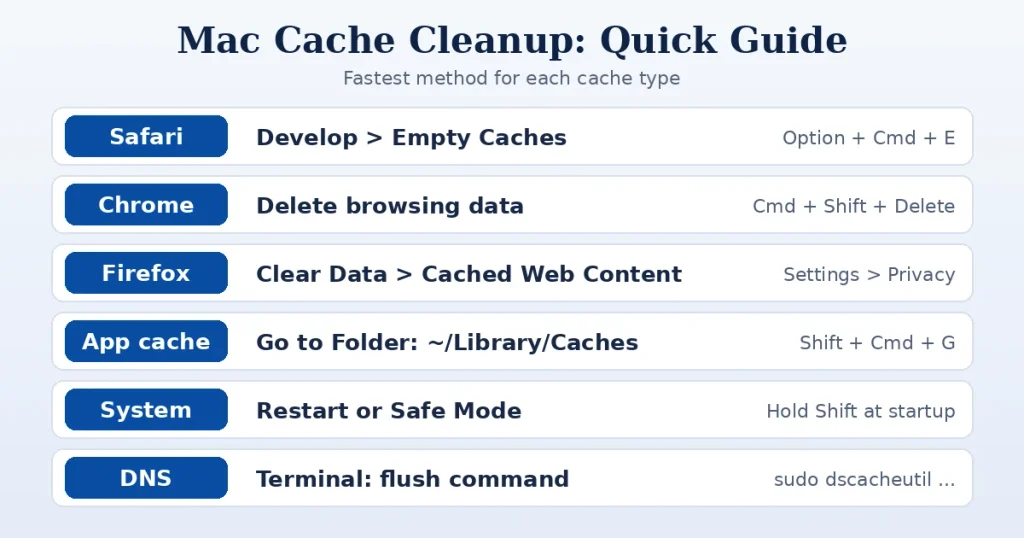
If you are in a hurry, here is the fastest route for each type of cache.
| Cache type | Where to do it | Fastest method |
|---|---|---|
| Safari | Safari > Settings > Advanced | Turn on “Show features for web developers”, then go to Develop > Empty Caches (Option + Command + E) |
| Chrome | Chrome browser | Press Command + Shift + Delete, select “Cached images and files”, click Delete data |
| Firefox | Firefox > Settings > Privacy & Security | Cookies and Site Data > Clear Data > tick “Cached Web Content” |
| App/user cache | Finder > Go > Go to Folder | Open ~/Library/Caches and delete the contents of app folders |
| System cache | Restart or Safe Mode | Restart your Mac, or start in Safe Mode once |
| DNS cache | Terminal | sudo dscacheutil -flushcache; sudo killall -HUP mDNSResponder |
What Is Cache and Why Does Your Mac Keep It?
A cache is a collection of temporary files that your Mac, your apps, and your browsers save so they can work faster the next time. Instead of downloading a website logo, rebuilding a thumbnail, or looking up an address from scratch, your system grabs a stored copy.
Think of it like a kitchen counter where you keep the ingredients you use every day. Walking to the pantry each time would be slower, so you leave the olive oil and salt within reach. The cache works the same way. It is helpful, but over time the counter can get cluttered with stuff you no longer need.
The main types of cache on a Mac
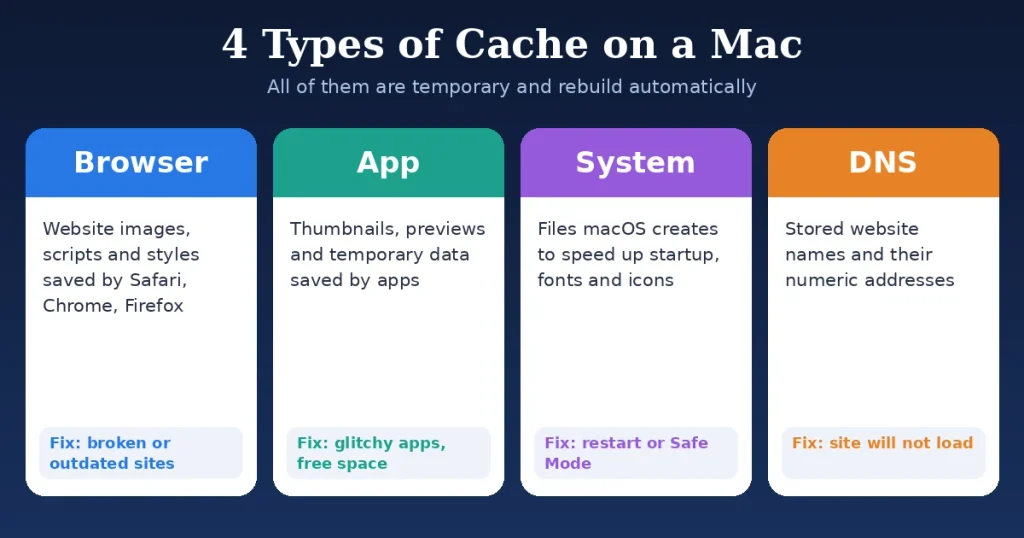
- Browser cache: images, scripts, stylesheets, and other website files saved by Safari, Chrome, Firefox, and other browsers so pages load faster.
- App cache (user cache): temporary data saved by individual apps, such as thumbnails, previews, downloaded assets, and settings. It lives mostly in your user Library folder.
- System cache: files macOS itself creates to speed up startup, fonts, icons, and system processes.
- DNS cache: a stored list of website names and their numeric addresses, which helps your Mac find sites more quickly.
All of these are designed to be rebuilt automatically. When you delete them, your Mac or app simply creates fresh copies as you use it.
Should You Clear Your Mac’s Cache?
Clearing cache is not something you need to do every week, and it is not a magic speed boost. But there are clear situations where it helps, and a few where you should hold off.
Good reasons to clear cache
- A website looks broken, shows old content, or will not load properly.
- You changed your own website and still see the old version.
- An app is behaving strangely, freezing or showing outdated data.
- You are running low on storage and want to free some space.
- You are troubleshooting a login problem, a loading loop, or a display glitch.
- You are changing network settings, or a site will not resolve (DNS issue).
When you do not need to clear it
- Your Mac runs perfectly well, and you have plenty of storage. Clearing cache “just because” brings little benefit.
- You are in the middle of important work and do not want to be signed out of websites.
- You are not sure what you are deleting. In that case, stick to the browser and Finder methods in this guide.
What happens after you clear cache
The first time you open a website or app, it may load slightly more slowly because it has to download or rebuild files. After that, the cache refills and things return to normal. You may also be signed out of some websites if you clear cookies and site data at the same time, so make sure you remember your passwords first.
Before You Start: A Quick Safety Checklist
- Save your work and close any apps you are about to clean.
- Know your passwords. Clearing cookies and site data can log you out of websites.
- Back up with Time Machine if you plan to delete files from your Library folder.
- Start with the browser. It is the safest and most useful place to begin.
- Never delete files you do not recognize from system folders.
- Restart your Mac when you are done to let everything rebuild cleanly.
How to Clear Safari Cache on Mac
Safari is the default browser on every Mac, so this is the method most people need. Safari gives you three ways to do it, depending on whether you want to clear only the cache, everything, or just one site.
Method 1: Empty the Safari cache only (keeps your history and logins)
This is the cleanest option because it removes cached files without wiping your browsing history or signing you out of websites.
- Open Safari.
- Click Safari in the menu bar and choose Settings (older versions call it Preferences).
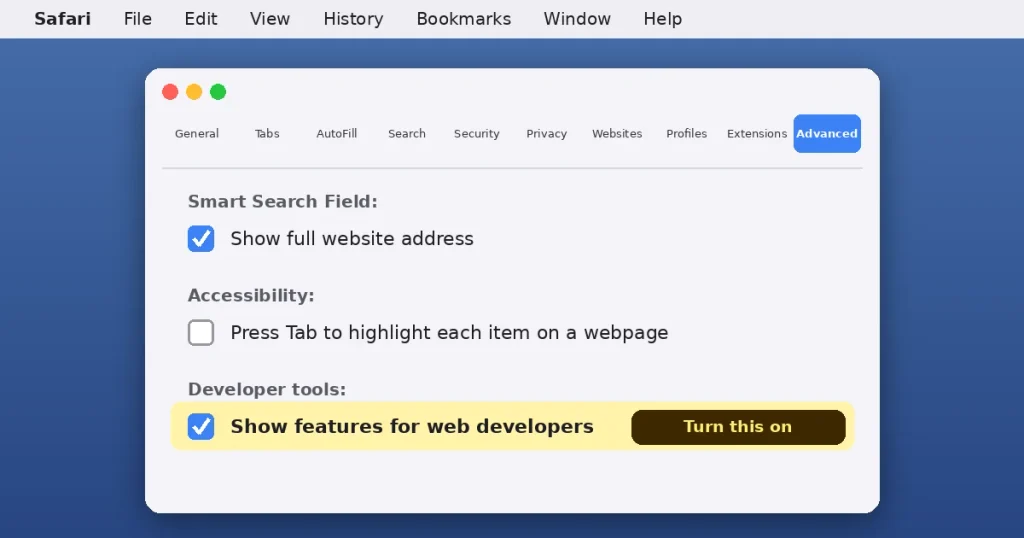
- Go to the Advanced tab.
- Turn on Show features for web developers. In older macOS versions, this option is called Show Develop menu in the menu bar.
- Close the Settings window. You will now see a Develop menu in the menu bar.
- Click Develop and choose Empty Caches. You can also use the shortcut Option + Command + E.
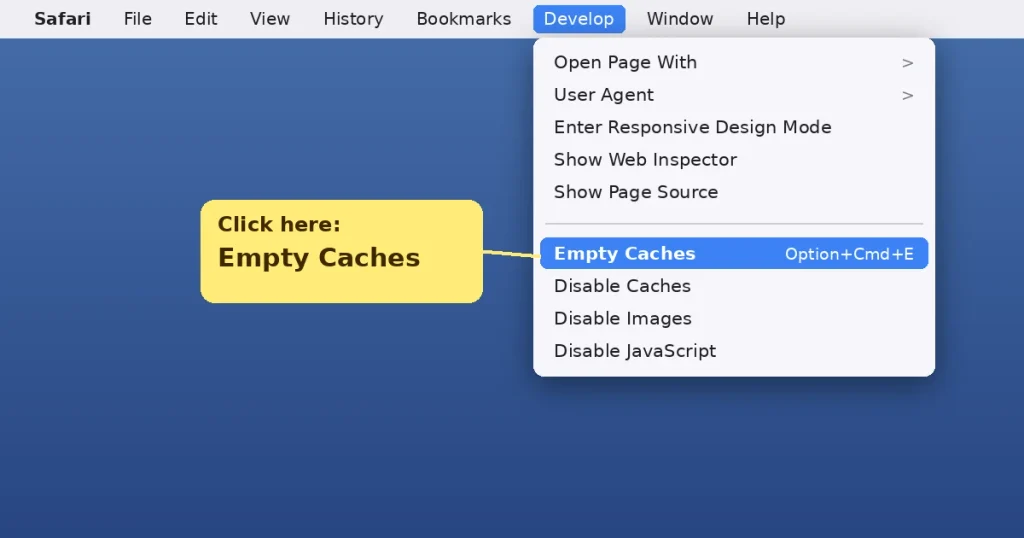
That is it. Safari does not show a confirmation message, but the cache is cleared. You can turn off the Develop menu afterward if you do not want it, although many people leave it on for the shortcut.
Method 2: Clear history and website data
Use this when you want a deeper clean, for example, if a site still misbehaves after emptying the cache.
- Open Safari.
- Click History in the menu bar and choose Clear History.
- Pick a time range from the dropdown, such as last hour, today, today and yesterday, or all history.
- Click Clear History.
This removes your browsing history along with cookies and other website data for the selected time range, so you may be logged out of some sites.
Method 3: Remove data for a single website
If only one website is giving you trouble, you can target just that site and leave everything else alone.
- Open Safari and go to Safari > Settings.
- Click the Privacy tab.
- Click Manage Website Data.
- Search for the website, select it, and click Remove. You can also click Remove All for everything.
- Click Done.
If you use Safari profiles, make sure you are working in the profile you want to clean, since each profile keeps its own data.
How to Clear Chrome Cache on Mac
- Open Google Chrome.
- Press Command + Shift + Delete to open the “Delete browsing data” window. You can also click the three-dot menu and go to Delete browsing data.
- Choose a Time range. Select All time for a full clean, or a shorter range if you only want to clear recent data.
- Tick Cached images and files.
- Untick Cookies and other site data and Browsing history if you want to stay signed in and keep your history.
- Click Delete data.
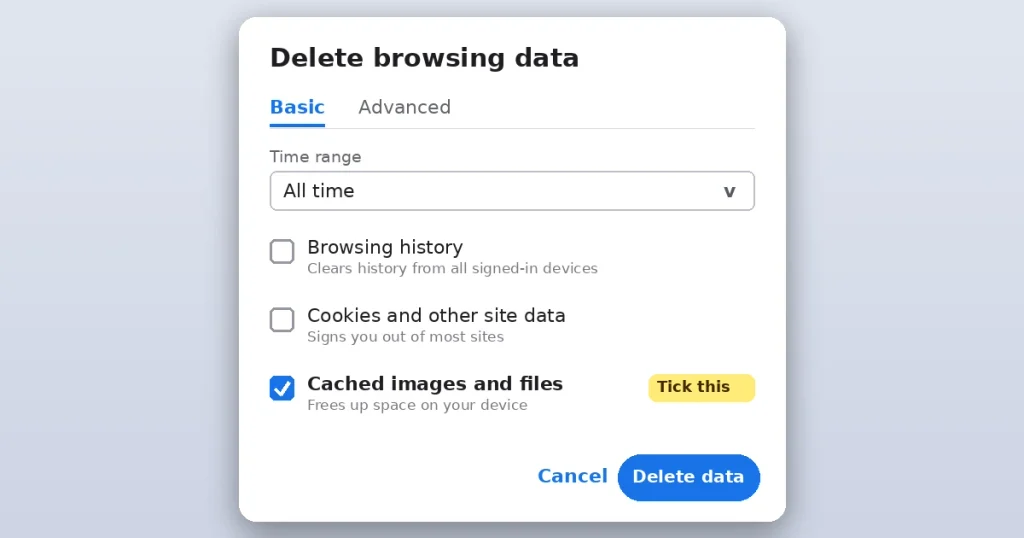
If you want a more thorough reset, you can also clear cookies and site data, but expect to log in to your accounts again.
How to Clear Firefox Cache on Mac
- Open Firefox.
- Click Firefox in the menu bar and choose Settings.
- Go to Privacy & Security in the left sidebar.
- Scroll to Cookies and Site Data and click Clear Data.
- Tick Cached Web Content. Untick Cookies and Site Data if you want to stay signed in.
- Click Clear.
Firefox also offers a shortcut, Command + Shift + Delete, which opens a “Clear Recent History” window where you can choose the time range and what to delete.
How to Clear Microsoft Edge, Brave and Other Browsers
Most Chromium-based browsers, including Microsoft Edge, Brave, and Opera, work very much like Chrome. Press Command + Shift + Delete, pick a time range, select Cached images and files, and confirm. If the shortcut does not work, open the browser’s Settings and look for Privacy or Clear browsing data.
How to Clear App (User) Cache on Mac Using Finder
Apps save their own temporary files in your user Library folder. Clearing these can free up space and fix app-specific glitches. This is the part where you should go slowly, because you are working with files outside your browser.
Step-by-step
- Quit all apps you are not using, and ideally the app whose cache you plan to clean.
- In Finder, click Go in the menu bar and choose Go to Folder. You can also press Shift + Command + G.
- Type ~/Library/Caches and press Return.
- You will see folders named after apps and services, such as com. apple. Safari or com.spotify.client.
- Open a folder and move its contents to the Trash. Leave the folder itself in place.
- Repeat for any apps you want to clean.
- Empty the Trash and restart your Mac.
What is safe and what to avoid
- Safe: the contents of individual app folders inside ~/Library/Caches, after you quit the related app.
- Be careful: do not delete the Caches folder itself, and avoid deleting everything at once if you are unsure.
- Avoid: system folders such as /System, and any file you do not recognize.
- Tip: start with the largest folders. In Finder’s list view, use View > Show View Options and tick “Calculate all sizes” to see which ones take up the most space.
If an app misbehaves after you clear its cache, restart the app and your Mac. In nearly all cases, the app simply rebuilds what it needs.
Clearing the system-wide Library cache
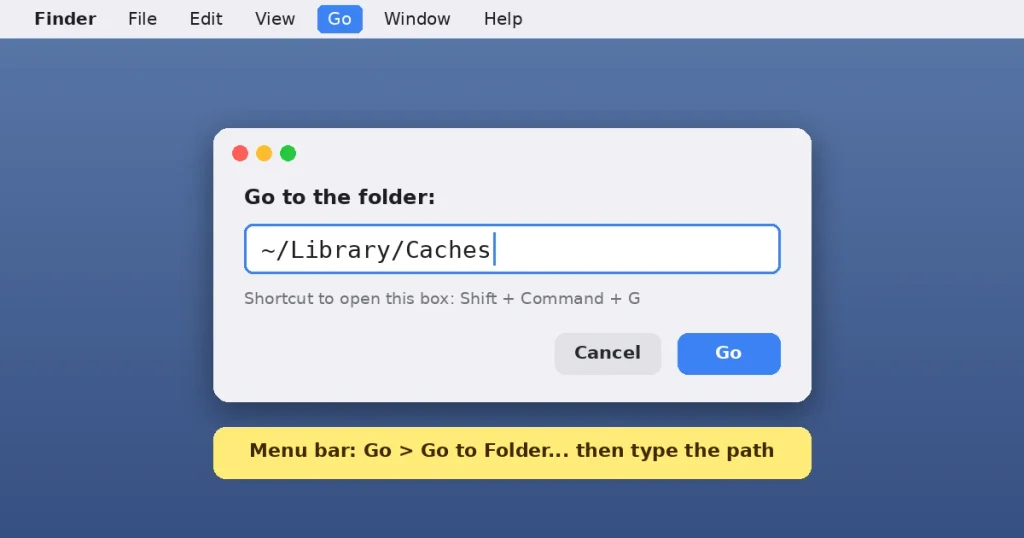
There is also a cache folder at /Library/Caches, which holds data shared across user accounts. You can open it using the same Go to Folder method. The risk is higher here, so if you choose to clean it, delete only items you recognize and keep a backup. For most people, the user cache and a restart are enough.
How to Clear System Cache on Mac
macOS manages most of its own system caches and clears or rebuilds them automatically. You rarely need to touch them by hand. Two simple, safe ways to refresh them are a restart and Safe Mode.
Restart your Mac
A normal restart clears many temporary files and resets processes. If you have not restarted in weeks, do this first. It is surprising how many “cache problems” disappear after a simple reboot.
Start in Safe Mode
Safe Mode runs only the essential parts of macOS and clears some system caches as part of the startup process. It is a good troubleshooting step when your Mac feels unusually slow or unstable.
On a Mac with Apple silicon (M-series chips):
- Shut down your Mac.
- Press and hold the power button until you see startup options.
- Select your startup disk.
- Hold Shift and click Continue in Safe Mode.
- Log in, then restart normally.
On an Intel Mac: restart and immediately hold down Shift until the login window appears, then log in and restart normally.
Safe Mode will also temporarily disable some features and login items, so do not be alarmed if your Mac looks a little different until you restart.
How to Clear DNS Cache on Mac
The DNS cache stores the addresses of websites you have visited so your Mac can find them faster. If a website will not load, loads the wrong server, or you just changed DNS settings, flushing the DNS cache can help.
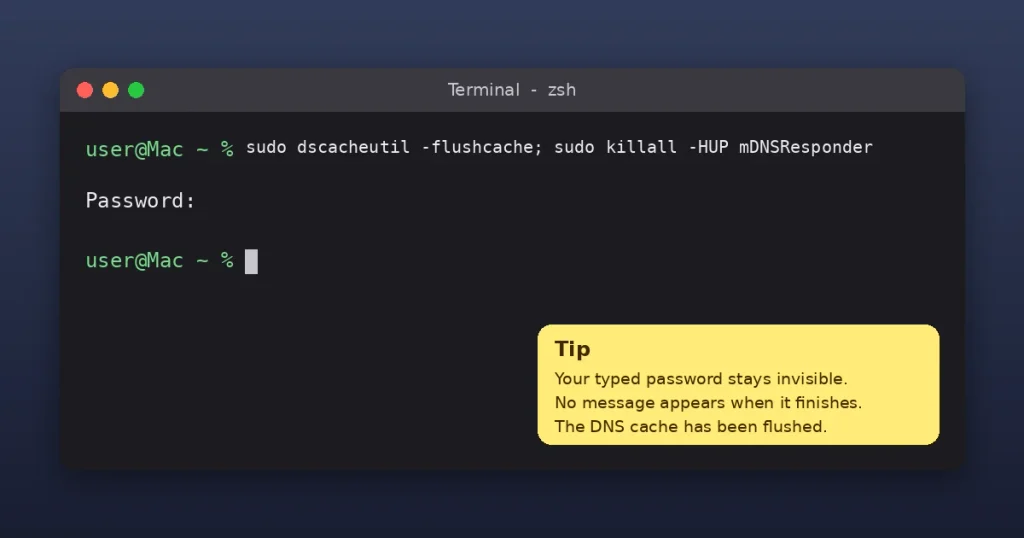
- Open Terminal (Applications > Utilities > Terminal, or search with Spotlight).
- Type the following command and press Return:
- sudo dscacheutil -flushcache; sudo killall -HUP mDNSResponder
- Enter your Mac password when asked. You will not see the characters as you type, which is normal.
- Press Return. There is no confirmation message, but the DNS cache has been flushed.
Only run Terminal commands you understand, and copy them exactly as written. This one is a standard command used for flushing DNS on modern versions of macOS.
Clearing Cache in Other Common Apps
Some apps have their own cache controls inside their settings. If you use any of these heavily, they are often the safest place to clean.
- Music and streaming apps (Spotify and similar): look in the app’s settings for a storage or cache option, which often lets you clear downloaded and cached data safely.
- Messaging and work apps (Slack, Teams, and similar): many have a “clear cache” or troubleshooting option in Help or Settings.
- Creative apps (Adobe and similar): these keep large cache and scratch files, and usually have a cache or preferences option inside the app.
- Xcode (for developers): build data is stored in ~/Library/Developer/Xcode/DerivedData and can be deleted to free space and fix build issues.
Always prefer the app’s built-in option over manually deleting files, since the app knows what is safe to remove.
Will Clearing Cache Speed Up Your Mac?
Here is the honest answer: sometimes, but not by much. Cache exists to make things faster, so deleting it can actually slow things down briefly while it rebuilds.
Where clearing cache does help is in fixing specific problems, such as a broken website, an app that will not refresh, or a corrupted cache file. It can also free up storage, although the amount varies a lot depending on how long you have used your Mac and which apps you run.
If your Mac is generally slow, the real culprits are usually something else. Common causes include too many apps and login items running at startup, a nearly full drive, too little memory for your workload, or an outdated macOS. For those problems, these steps help more:
- Check Activity Monitor (Applications > Utilities) to see which apps use the most memory and CPU.
- Remove unused startup items in System Settings > General > Login Items.
- Check storage in System Settings > General > Storage and clean up large files you no longer need.
- Keep macOS and your apps up to date.
- Restart your Mac regularly.
Should You Use a Third-Party Mac Cleaner?
Apps that promise one-click cleaning are everywhere. Some are well made and can save time, especially if you are not comfortable browsing through Library folders. Others are overhyped, push aggressive upsells, or delete more than they should.
| Pros | Cons |
|---|---|
| Easy, one-click interface | Many are paid or subscription-based |
| Can find large and duplicate files | Some exaggerate the benefit of cleaning cache |
| Saves time on routine cleanup | Risk of deleting files you need |
| Helpful for non-technical users | Free versions often have limits |
If you decide to use one, pick a well-known developer, read independent reviews, avoid anything that scares you with exaggerated warnings, and check what it plans to delete before you confirm. For most people, the manual methods in this guide are free and enough.
Common Problems and How to Fix Them
| Problem | Likely cause | What to try |
|---|---|---|
| Safari has no Develop menu | The option is turned off | Safari > Settings > Advanced > turn on “Show features for web developers” |
| Website still looks outdated | Cache or DNS still holds old data | Empty caches, hard refresh (Command + Shift + R), then flush DNS |
| Logged out of many sites | Cookies were cleared too | Log in again, and next time clear only cached files |
| Cannot delete a cache file | The app is still running | Quit the app, then try again or restart your Mac |
| Cache fills up again quickly | Normal behavior | This is how cache works; clear only when you have a problem |
| App is slow after clearing | Cache is rebuilding | Give it a few minutes and restart the app |
How Often Should You Clear Cache on Mac?
There is no strict schedule. A sensible approach is to clear cache when you have a reason, not on autopilot.
- Browser cache: only when websites behave strangely, or every few months if you like to keep things tidy.
- App cache: when an app misbehaves, or you need to free space.
- System cache: rarely. A restart every so often is usually enough.
- DNS cache: only when you have network or website resolution problems.
Common Mistakes to Avoid
- Deleting entire system folders. Stick to app cache folders and leave system files alone.
- Clearing cookies by accident. If you only want to clear cache, untick cookies and site data.
- Skipping a backup. A quick Time Machine backup is cheap insurance before you delete anything from Library.
- Cleaning while apps are open. Quit the app first, so files are not in use.
- Copying Terminal commands blindly. Use only commands from trusted sources and understand what they do.
- Expecting a miracle. Clearing cache solves specific problems, not every slowdown.
Frequently Asked Questions About Clearing Cache on Mac
Is it safe to clear cache on a Mac?
Yes, as long as you stick to browser cache, app cache folders, and standard methods. Cache files are temporary and get rebuilt automatically. Avoid deleting system files or anything you do not recognize.
How do I clear cache on a Mac without losing passwords?
Clear only “Cached images and files” in your browser, and do not select cookies or site data. In Safari, use Develop > Empty Caches, which does not remove your saved logins.
How do I clear Safari cache on Mac?
Go to Safari > Settings > Advanced, turn on “Show features for web developers,” then choose Develop > Empty Caches. You can also press Option + Command + E once the Develop menu is enabled.
Where is the cache folder on a Mac?
User cache is in ~/Library/Caches, and a shared cache is in /Library/Caches. You can open them with Finder > Go > Go to Folder.
Will clearing cache delete my files or photos?
No. Cache contains temporary data, not your documents, photos, or personal files. Just do not confuse it with other folders in Library that hold app data and settings.
Why is my Mac storage full of System Data?
System Data includes caches, logs, temporary files, and other items macOS manages. Clearing app and browser caches can free some of it, but it is not always the main cause, so check which apps and files use the most space.
How do I clear the DNS cache on Mac?
Open Terminal and run: sudo dscacheutil -flushcache; sudo killall -HUP mDNSResponder. Enter your password when asked. There is no confirmation message when it finishes.
Does restarting the Mac clear the cache?
A restart clears many temporary files and resets processes, and it is a safe first step when something feels off. It does not remove every cache, but it often solves minor problems.
Final Thoughts
Clearing cache on a Mac is simple once you know where to look. Start with the browser, since that fixes most website problems in seconds. If an app is misbehaving, clear its cache through the app itself or, with care, via the Library folder. Use a restart or Safe Mode for system-level hiccups, and flush the DNS cache only when a site will not resolve.
Most importantly, treat cache clearing as a fix for a specific problem, not a weekly ritual. Your Mac is built to manage its own temporary files, and a few smart habits, like restarting regularly, keeping macOS updated, and watching your storage, will keep it running well.
Found this helpful? Bookmark this guide for the next time your Mac needs a refresh, and share it with a friend who keeps asking “how do I clear cache?”
Disclaimer: This article is for general information only. Menu names and steps can vary between macOS versions. Back up your data before deleting files, and use caution when working in system folders or running Terminal commands. Mac, macOS, Safari and Time Machine are trademarks of Apple Inc. This site is not affiliated with Apple.
Read More